
This guide walks through the whole hire, from finding a practice to paying the first invoice. Each step says what to press, what the practice does next, and what you wait for. Everything happens in one conversation with the practice, and the card headed Your next move always tells you whose turn it is.
You need to be an owner or editor of your company's workspace.
Before you start: DPCO or DPO?
- A DPCO firm is licensed by the NDPC to audit you and file your annual compliance audit return. Only a firm whose licence is current can file.
- An independent DPO can act as your data protection officer. An individual cannot file your return.
- A firm cannot itself be your DPO, because the Commission needs a named person. A firm can supply one of its people, and the person named is the one who answers.
If you choose a job the practice cannot take, the request tells you why before you send anything.
Step 1: Open the marketplace
Open Partners under Connections & trust on the rail, then press Find a provider, or Browse the marketplace if you have no providers yet. The page is headed Find the right data protection partner.
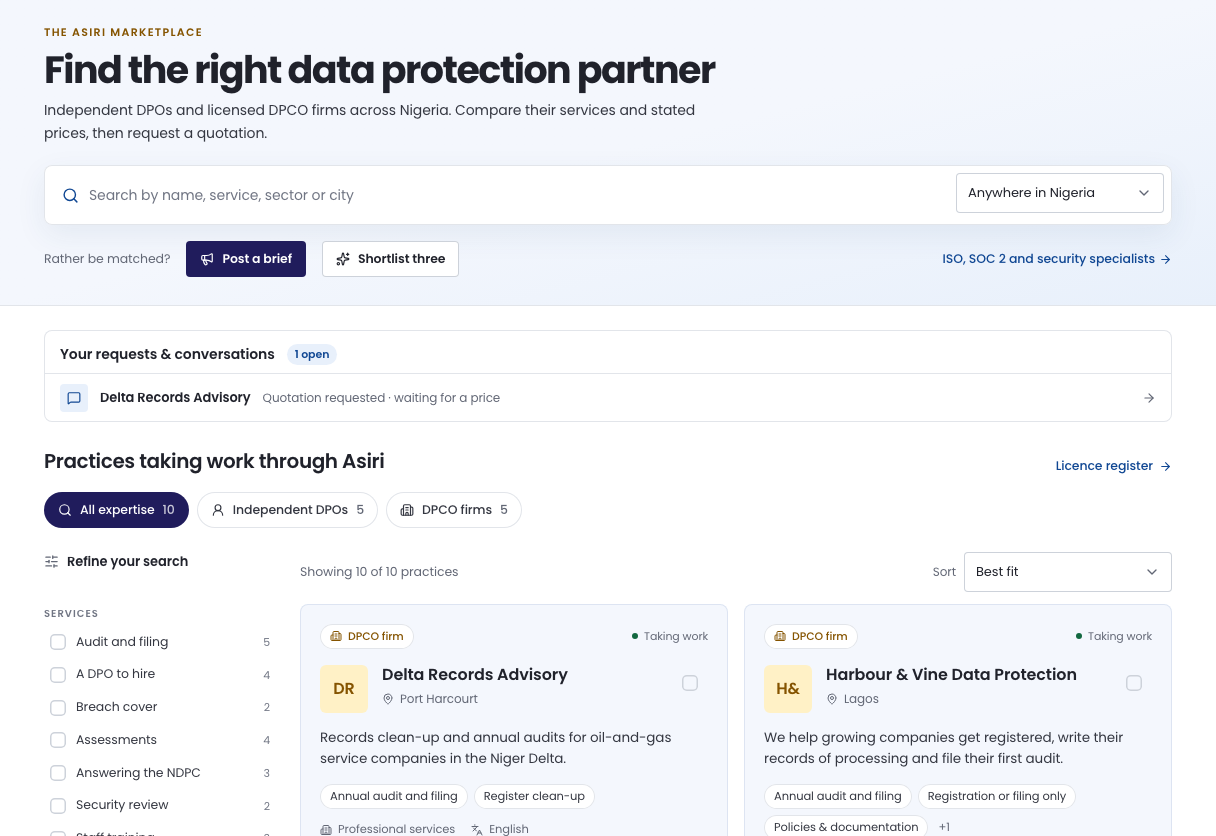
If you already have requests or conversations open, they are listed under Your requests & conversations. Press a row to go back to that conversation.
Step 2: Narrow the list
- Search by name, service, sector or city, and choose a place in the Anywhere in Nigeria list.
- Choose All expertise, Independent DPOs or DPCO firms above the list.
- Under Refine your search, tick what you need: Services, Sector, Availability and Practice standing.
- Change the order with Sort.
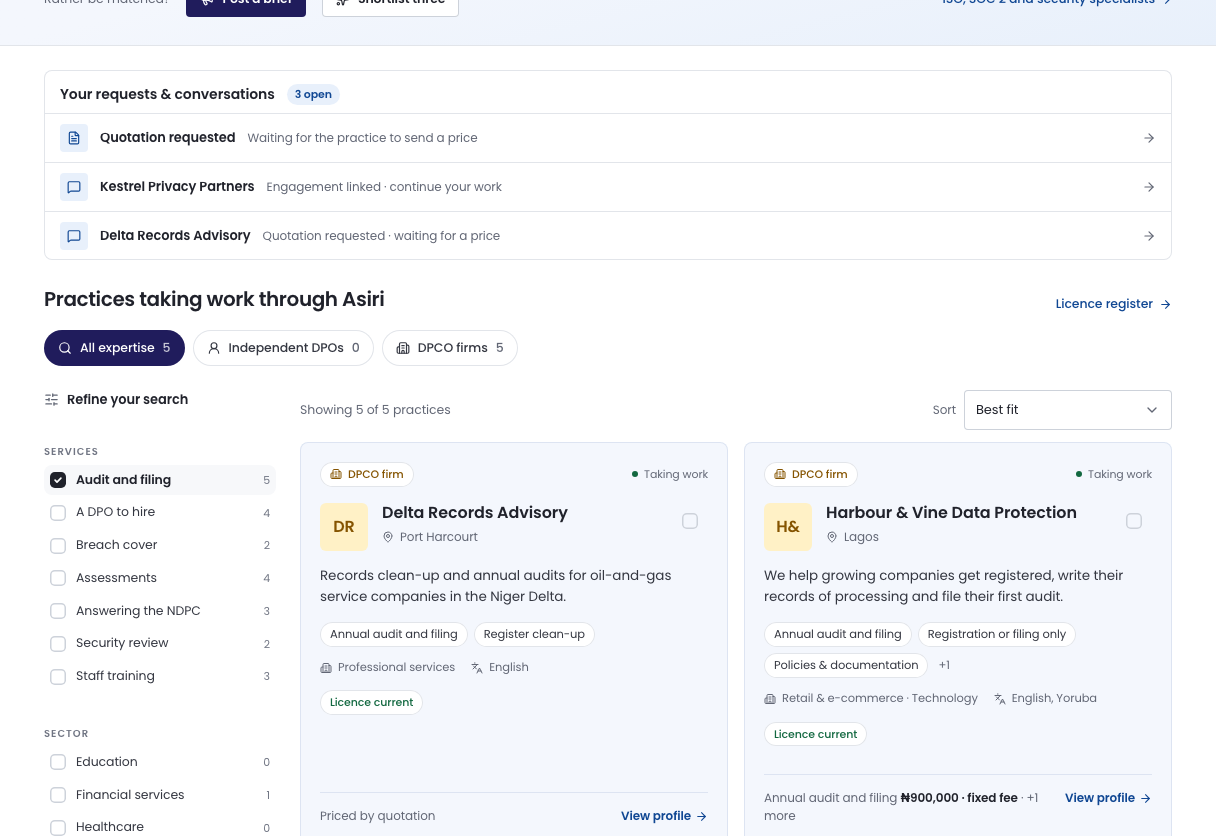
Each card shows the practice's kind, whether it is taking work, its services, its stated prices and its standing. Licence current means the NDPC register shows a current licence.
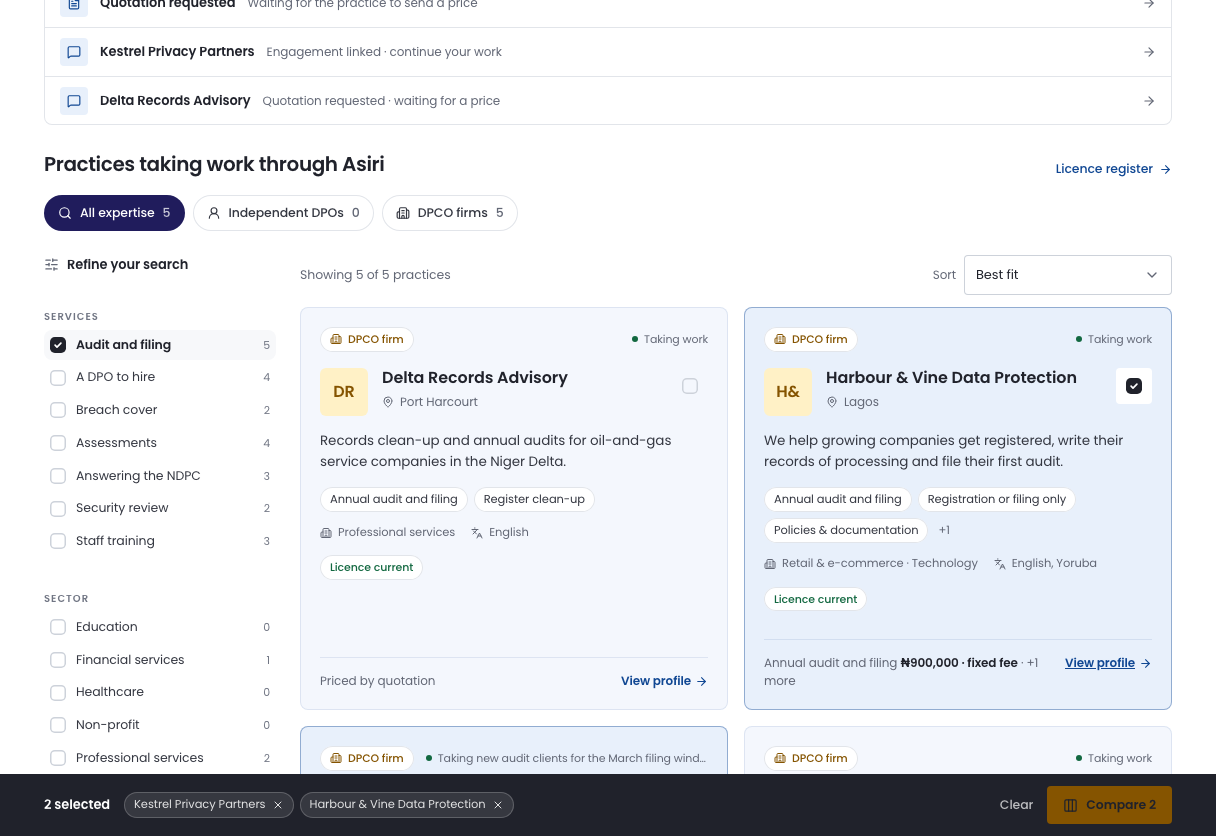
To weigh two or three practices side by side, tick the box at the top right of each card, then press Compare in the bar at the bottom of the page. A blank in the table means Asiri has no record of it, which is different from a bad one.
Step 3: Read the practice's profile
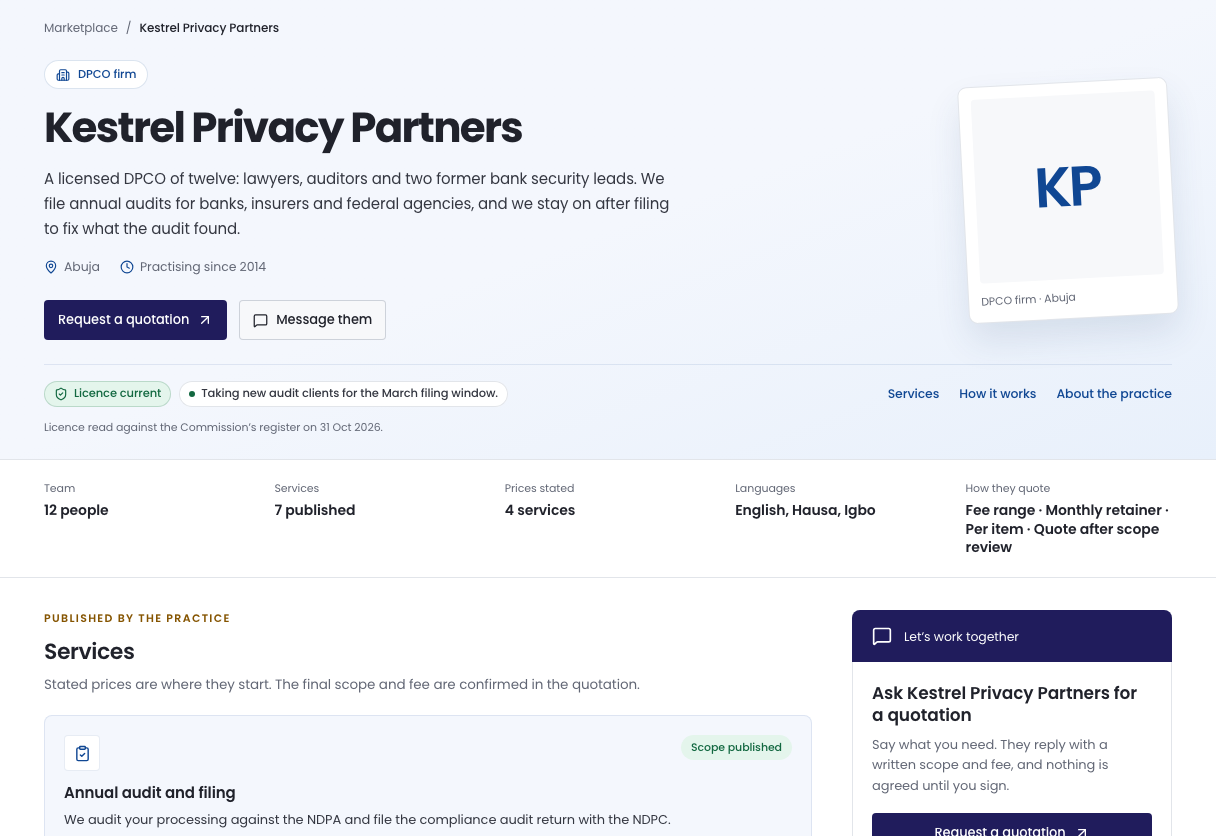
Press a practice's name, or View profile. The profile shows what they do, their team, the services they have published and their stated prices.
Stated prices are where they start. The final scope and fee are agreed in the quotation.
Step 4: Request a quotation
Press Request a quotation. To ask about one published service, press Request this scope under it instead. The request has three short steps.
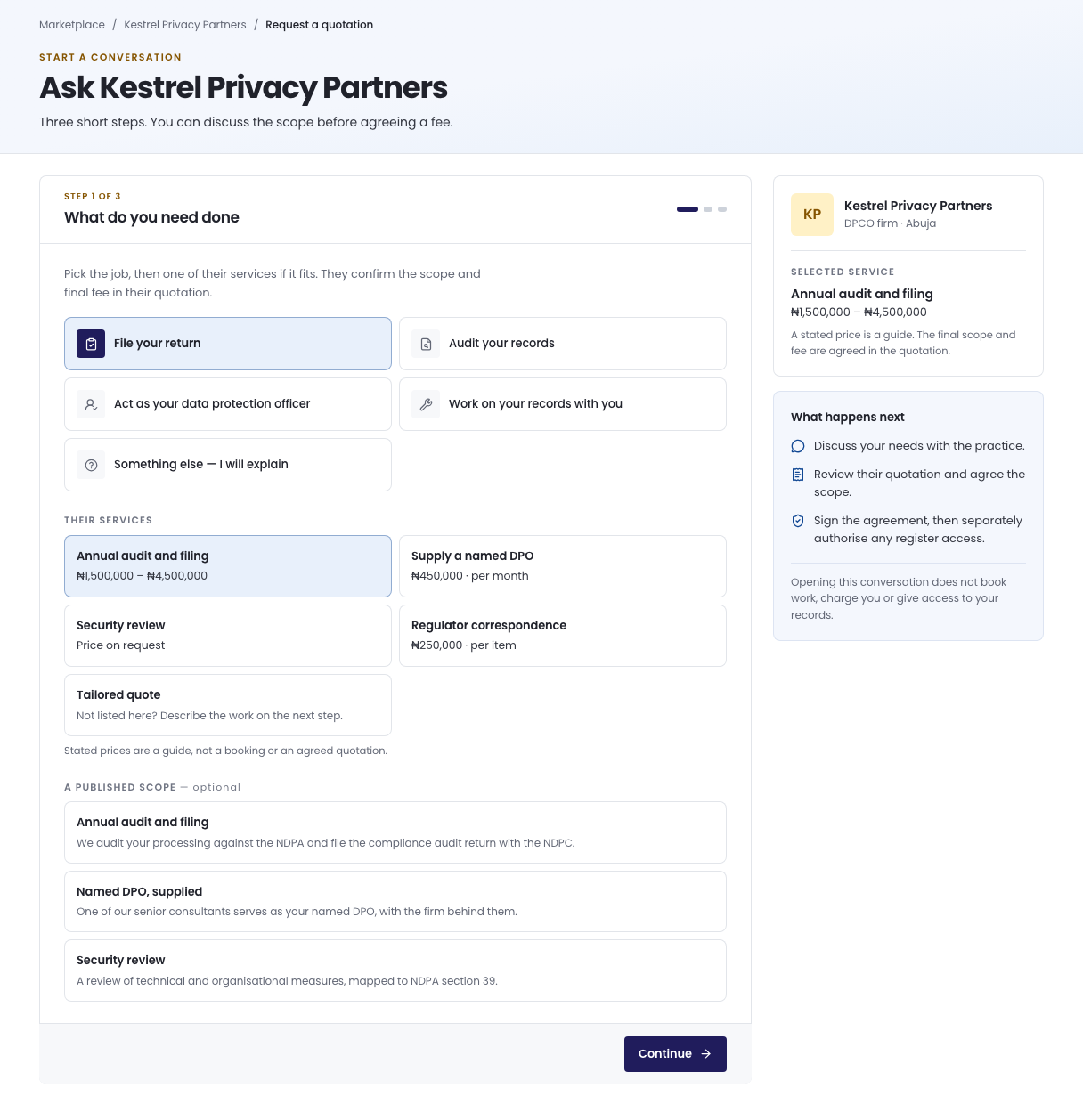
Step 1 of 3, What do you need done. Choose the job: File your return, Audit your records, Act as your data protection officer, Work on your records with you or Something else — I will explain. Then choose one of Their services, or Tailored quote if what you need is not listed. If you do not choose a service, choose How you would like to engage: One job, one price, A monthly retainer or One register, one purpose. Press Continue.
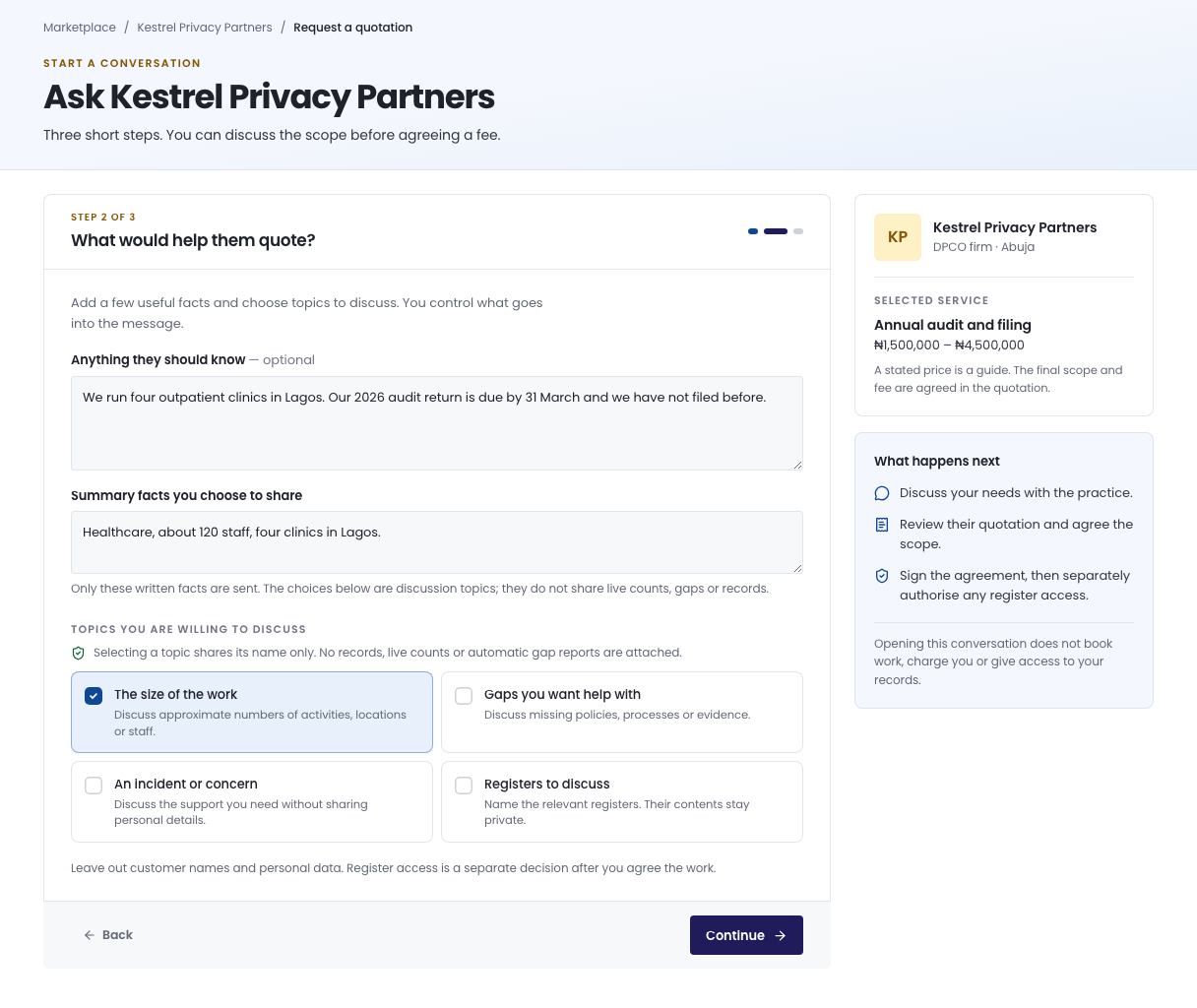
Step 2 of 3, What would help them quote? Everything here is optional.
- Anything they should know: what has been done, what is broken, when you need it by.
- Summary facts you choose to share: for example your sector, number of staff and locations. Only what you write is sent.
- Topics you are willing to discuss: selecting a topic shares its name only. No records, live counts or gap reports are attached.
Leave out customer names and personal data. Press Continue.
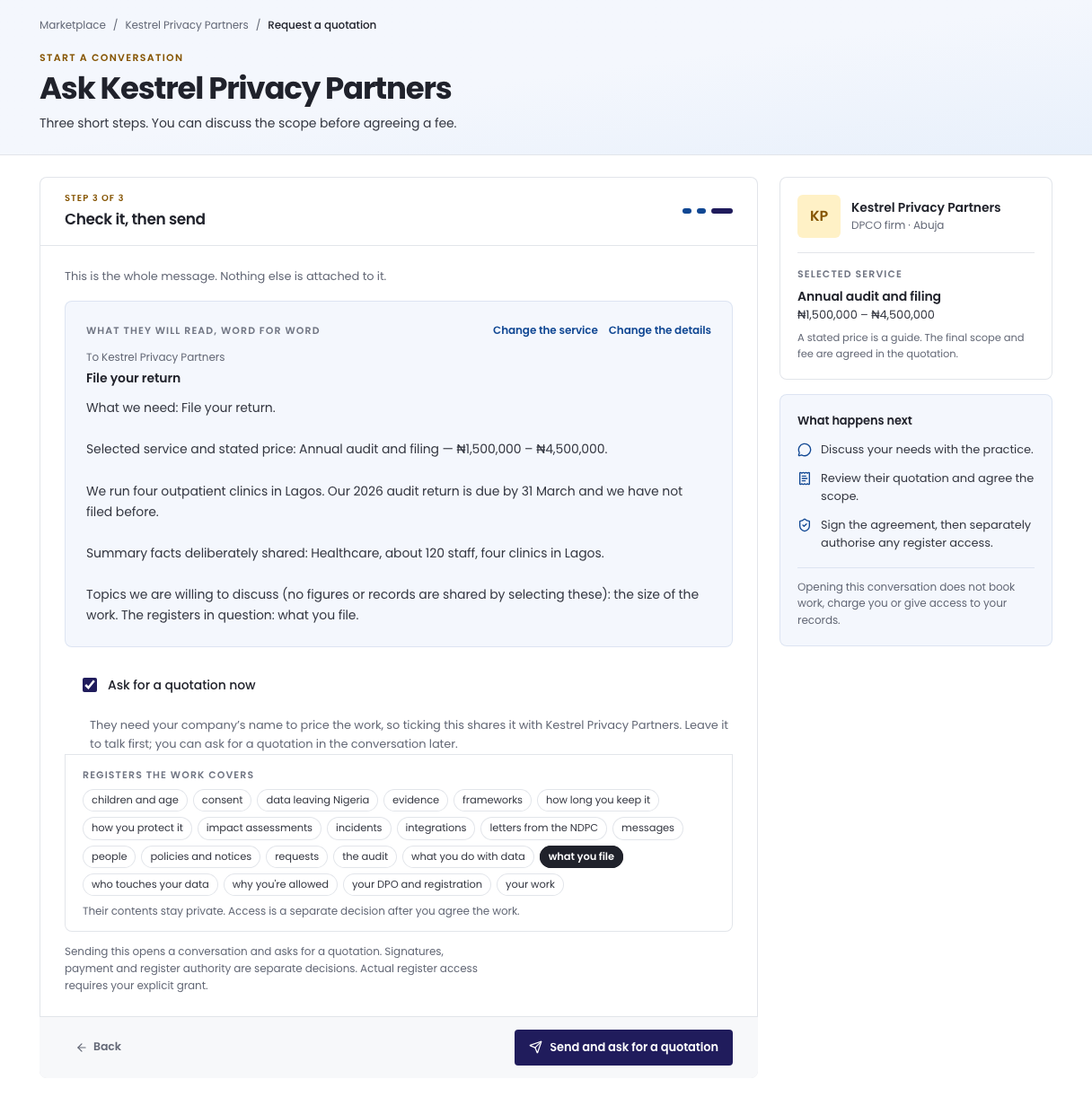
Step 3 of 3, Check it, then send. The box headed What they will read, word for word is the whole message. Press Change the service or Change the details to go back.
Ask for a quotation now is ticked when you came from Request a quotation. Ticking it shares your company's name with the practice, because they need it to price the work. Under Registers the work covers, press each register the work involves. Their contents stay private.
Press Send and ask for a quotation. The button stays greyed out until you have chosen at least one register.
Step 5: Wait for the quotation
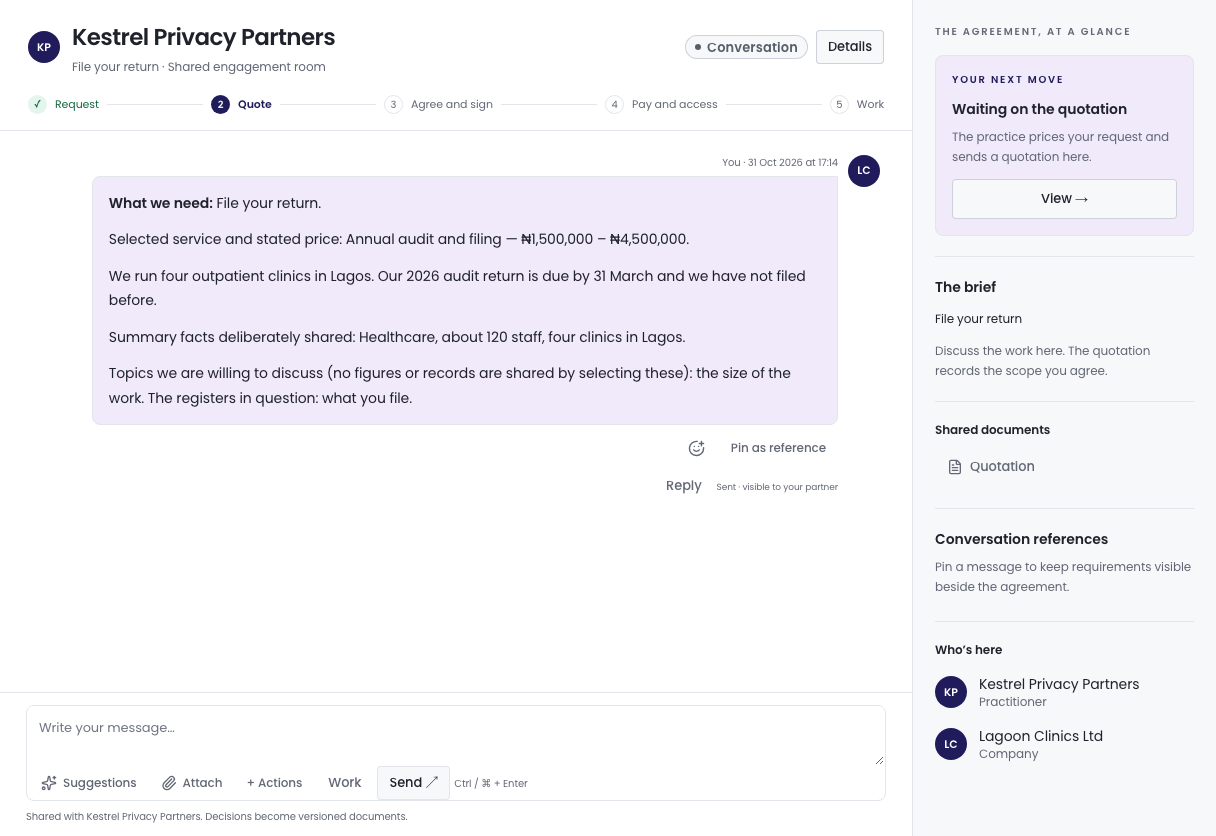
The conversation opens. Your next move says Waiting on the quotation. The practice prices your request and sends the quotation here. You can write to them in the conversation meanwhile, and you are told when the quotation arrives.
Step 6: Review the quotation
When it arrives, Your next move says Review the quotation. Press Continue, or Review quotation on the message that announced it.
The quotation shows the scope you are agreeing to, the services and deliverables, the fees with VAT, the payment schedule, what is not included, what the practice needs from you, when the work starts and how long it takes. For a DPO, it also names the person who will be your DPO.
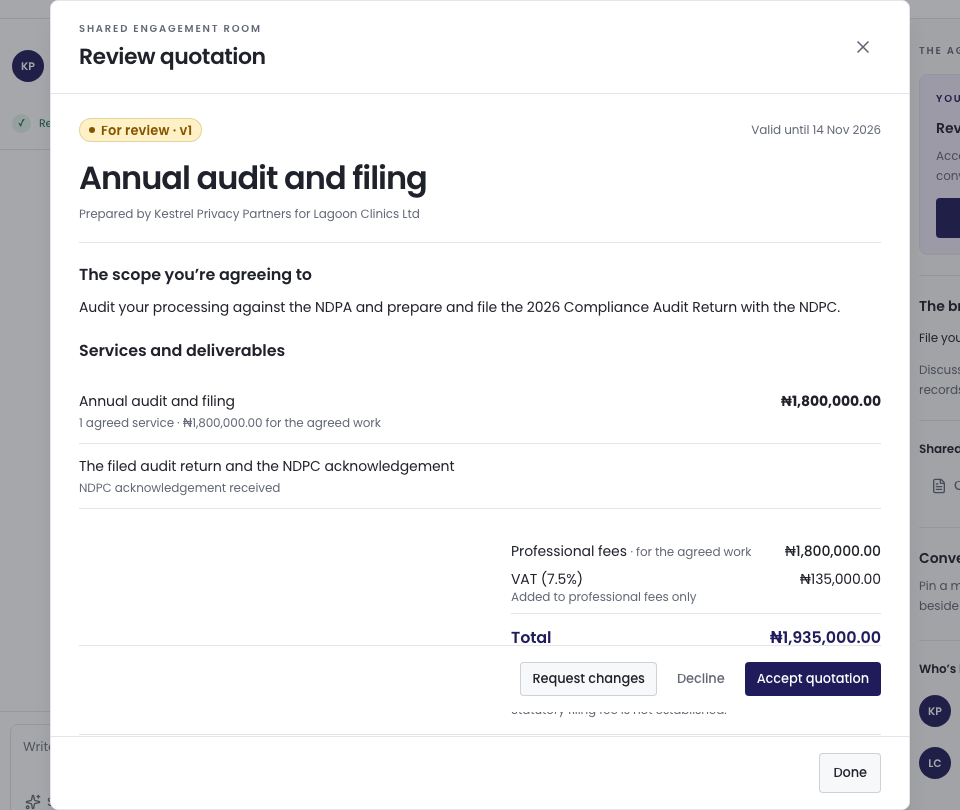
Then press one of:
- Accept quotation: accepts this version.
- Request changes: write What would you like to change? and press Send request. The practice can send a revised version.
- Decline: turns the quotation down straight away. There is no second question, so press it only when you mean it.
Accepting takes no payment. Payment follows the agreement you both sign next.
Step 7: Confirm it's you
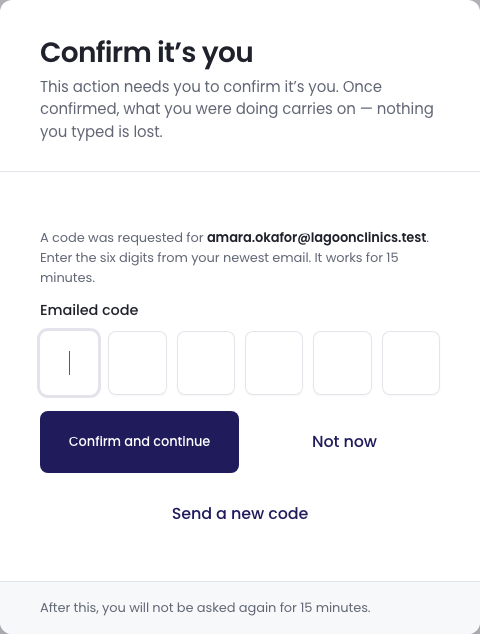
Accepting, signing and approving access are protected. A box headed Confirm it’s you may open and a six-digit code is emailed to you. Enter it under Emailed code and press Confirm and continue. What you were doing carries on, and you are not asked again for 15 minutes. If the code does not arrive, press Send a new code.
Step 8: Wait for the agreement
Your next move says The practice is preparing the agreement. The practice drafts it from the quotation you accepted and signs it first. If the card still shows an earlier step just after you accept, reload the page.
Step 9: Read and sign the agreement
When it is your turn, Your next move says Review and sign the agreement. Press Continue.
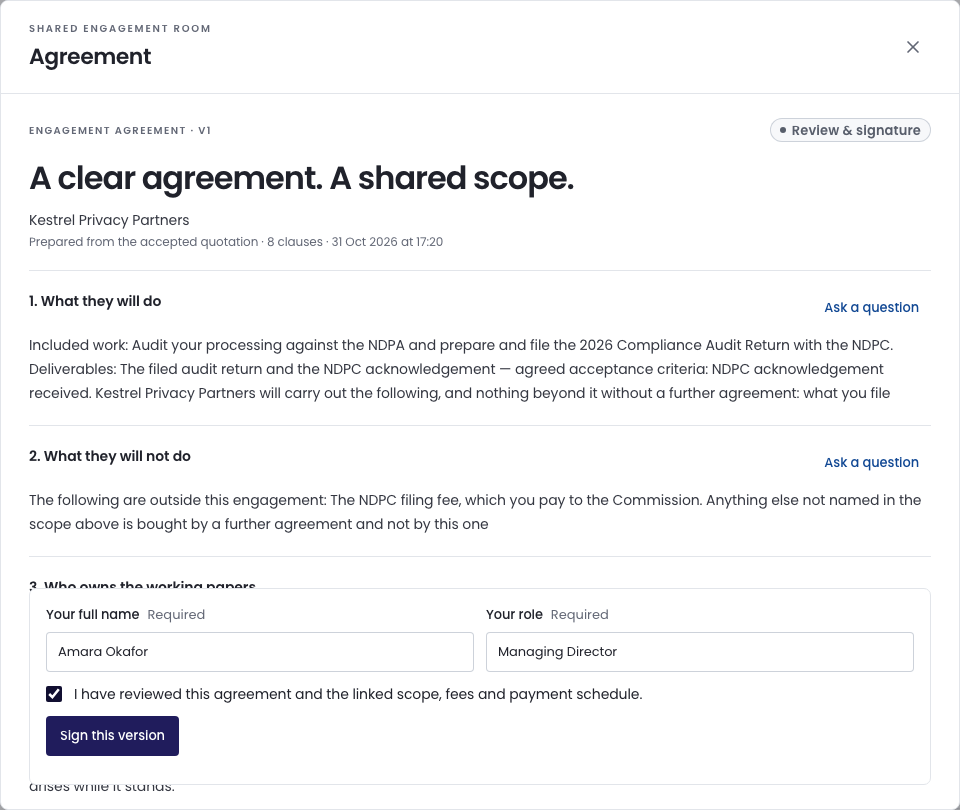
Read each clause. To ask about one, press Ask a question beside it. Nobody can sign while a question is open.
At the end of the agreement:
- Check Your full name. It is filled in from your profile.
- Enter Your role, for example Managing Director.
- Tick I have reviewed this agreement and the linked scope, fees and payment schedule.
- Press Sign this version.
When both of you have signed, the agreement says Both parties signed. Signing does not charge you and does not give the practice access to your records.
Step 10: Approve the practice's access request
The practice now asks for the registers and actions it needs. Until then the card says Waiting on the access request. When it has asked, the card says Approve the access request. Press Continue.
Under Register authority:
- Untick any register or action you do not want to grant.
- Check Authority expires. It is set 90 days ahead. Change it if the work needs longer or shorter.
- Add a Note to the practice (optional).
- Press Approve selected authority.
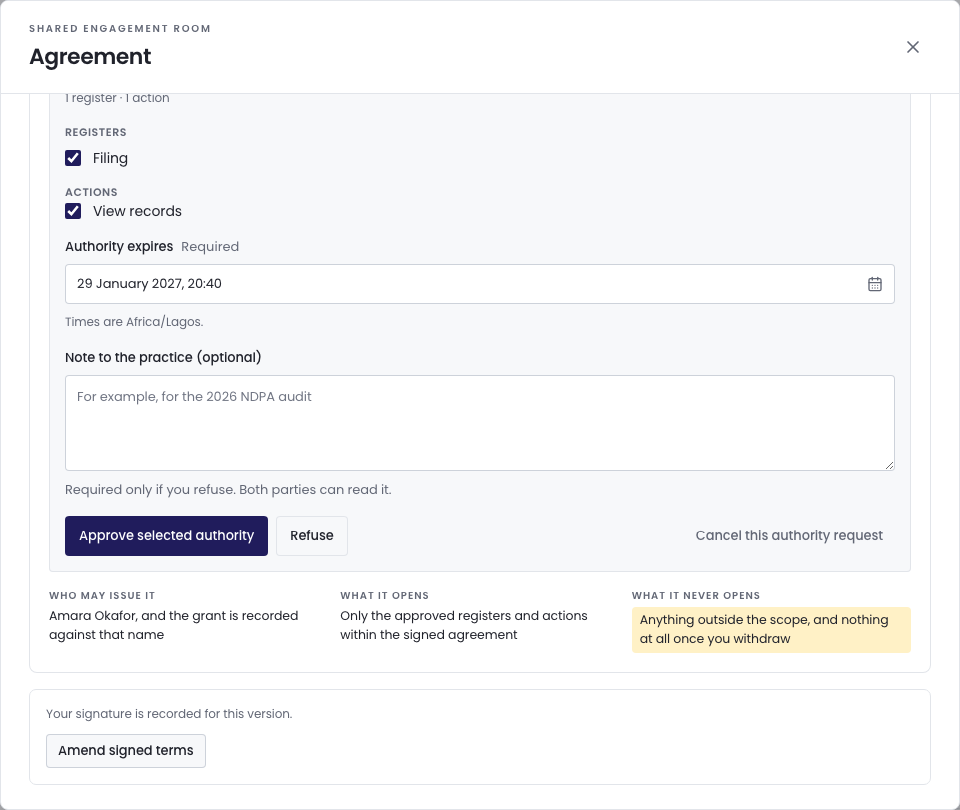
To turn the request down, write the note and press Refuse. A note is required when you refuse.
Step 11: Issue the access code on a call
Approval alone grants nothing. The panel now says Issue the approved authority code. Get on a call with the practice, then press Issue the code.
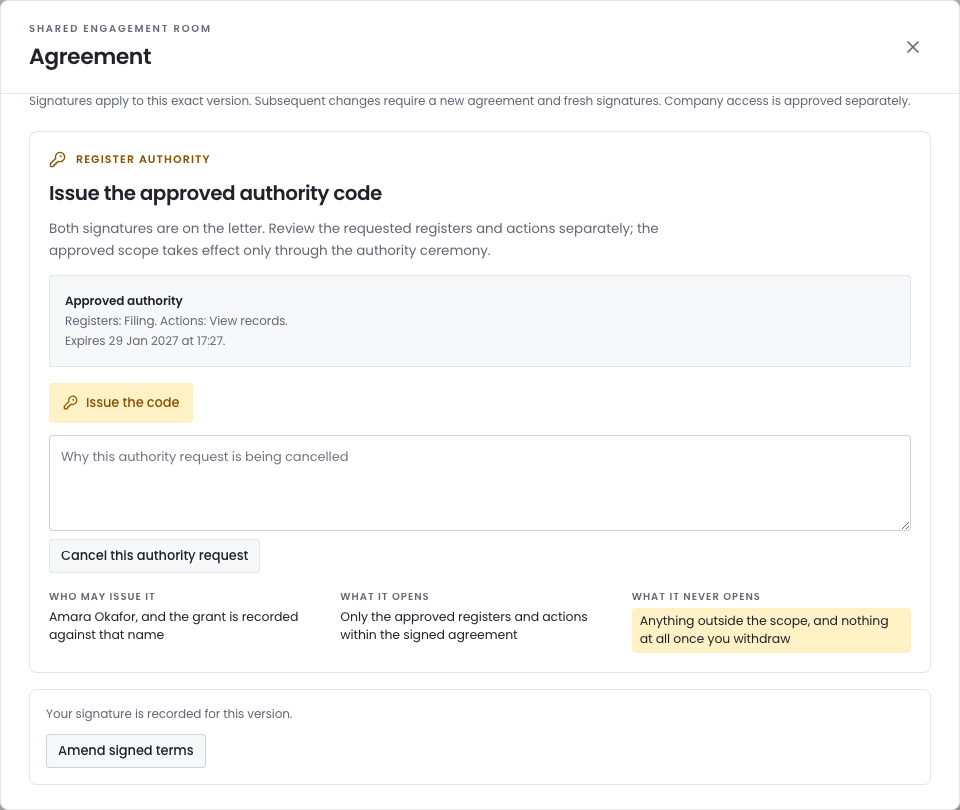
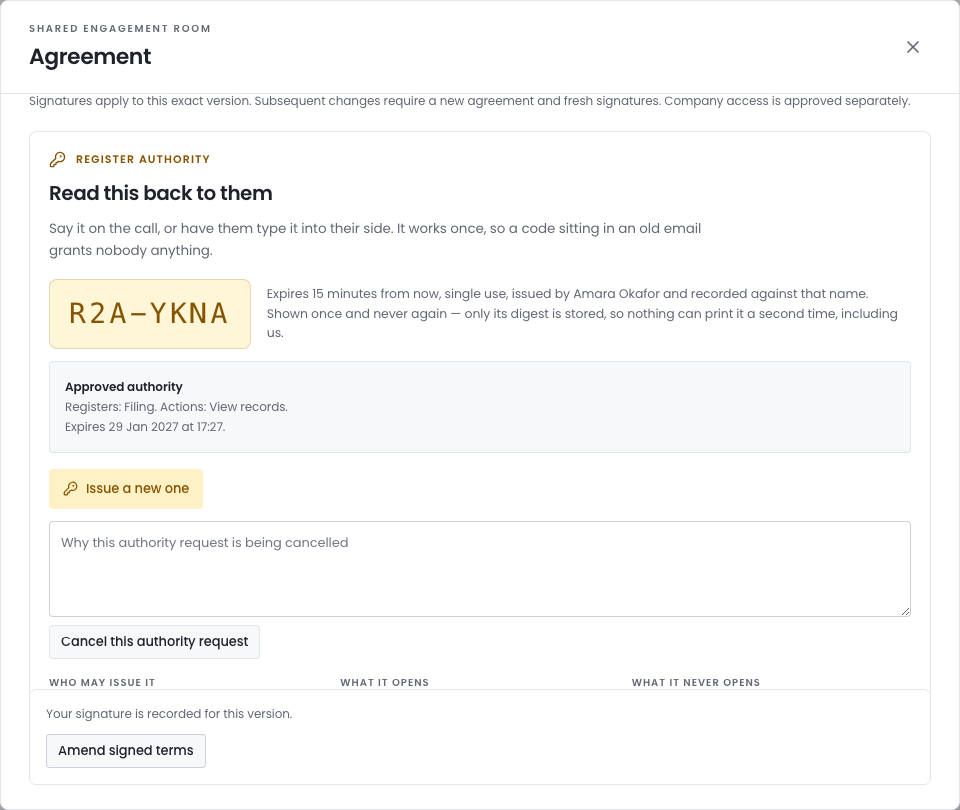
Read the code out to them. It works once, expires in 15 minutes and is shown only once. Access opens when they enter it on their side. If it expires, press Issue a new one.
Step 12: Pay the invoice
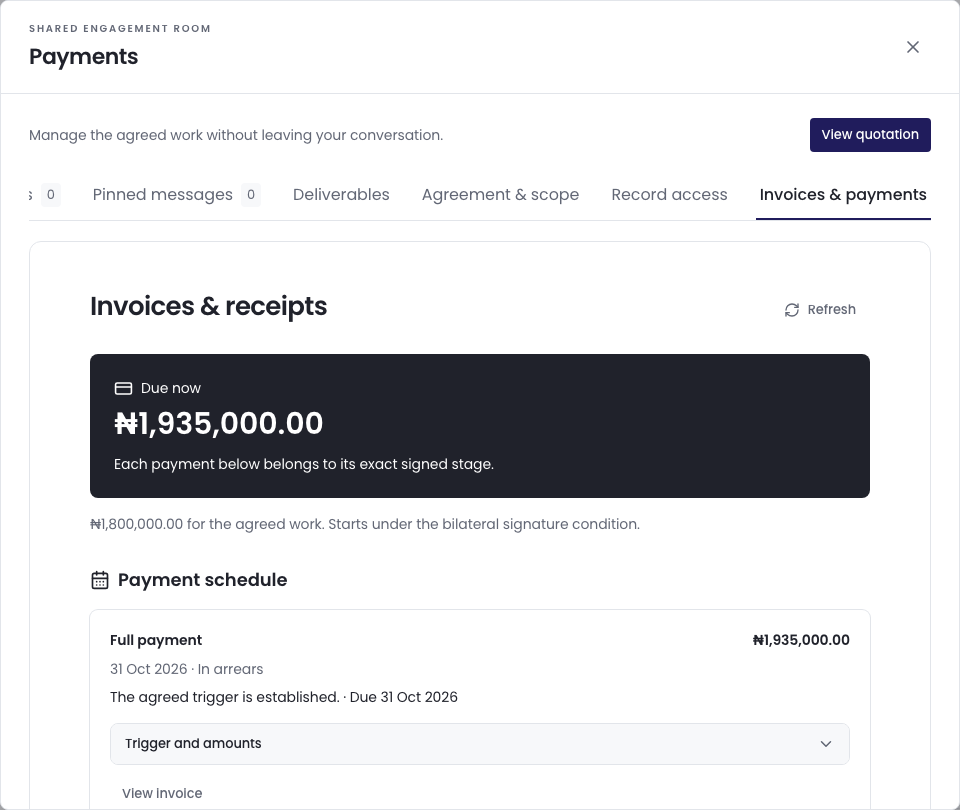
The invoice the agreement calls for is issued when both of you sign. When it falls due, Your next move says Pay the invoice that is due, or Pay the first invoice if the agreement asks for payment before work starts. Press Continue to open Invoices & payments.
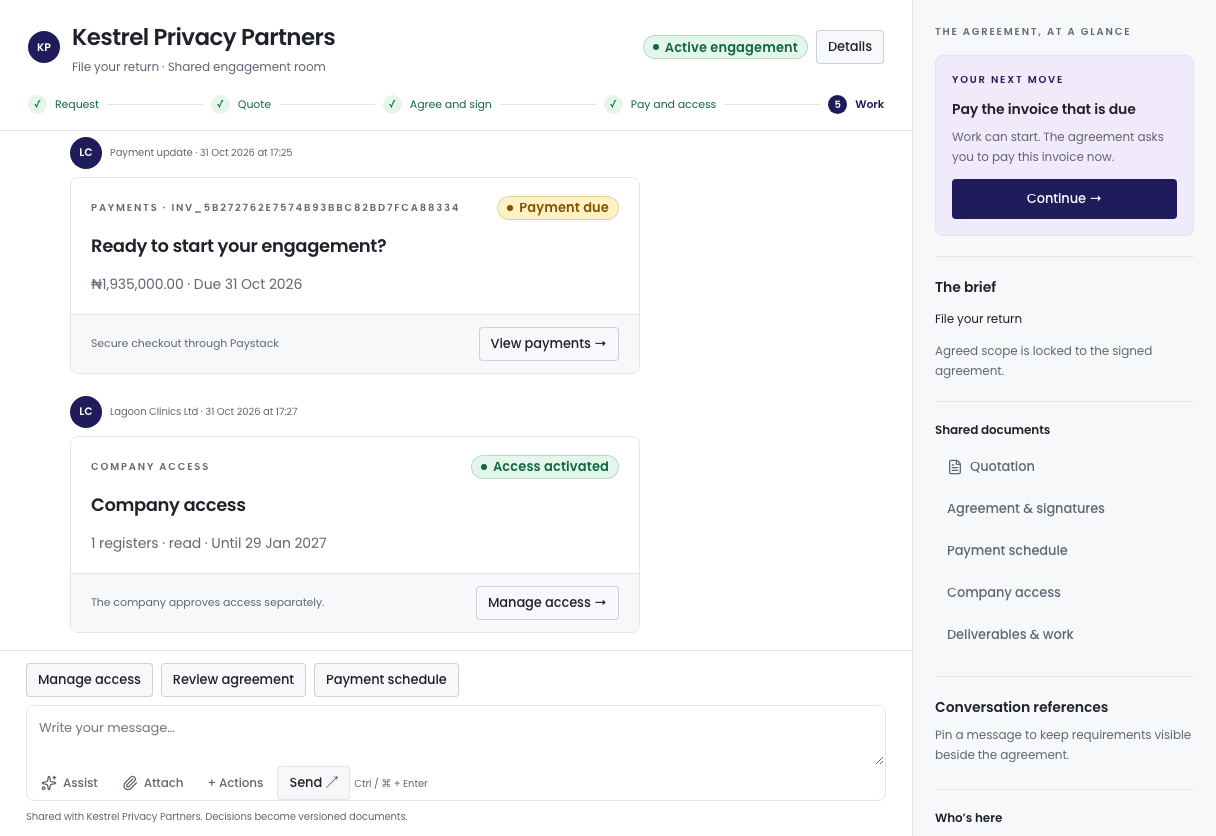
- Under Invoices, press Continue to Paystack.
- Pay on Paystack's checkout. Paystack may add a processing fee, so check the total before you pay.
- You come back to the conversation. If the invoice does not show Verified collection yet, press Check payment status.
Paying needs an owner or editor. If you are not one, the page says so. Ask an owner to pay, or to give you that permission.
Step 13: The work starts
Once the agreement is signed, the access is open and anything due before work is paid, Your next move says Move the work forward and the step bar reaches Work. The practice delivers in the same conversation, under Deliverables, and you accept each deliverable there.
If you get stuck
- The send button is greyed out. Choose at least one register under Registers the work covers, or untick Ask for a quotation now to send an enquiry first.
- The request says the practice cannot take the job. Choose another job, or another practice. Only a DPCO firm whose licence is current can file your return.
- No code arrived. Press Send a new code in the Confirm it’s you box, and check the email address shown there.
- Your next move says you are waiting. It is the practice's turn. Write to them in the conversation if it is taking long.
- The access code expired. Press Issue a new one and read the new code.
- You cannot pay. You need to be an owner or editor.
Common questions
"Does asking for a quotation commit us to anything?" No. Nothing is agreed until you accept a quotation and both sides sign the agreement.
"Can we ask several practices?" Yes. Each request is its own conversation.
"Does signing or paying give the practice access?" No. Access opens only when the practice enters a code you issued.